
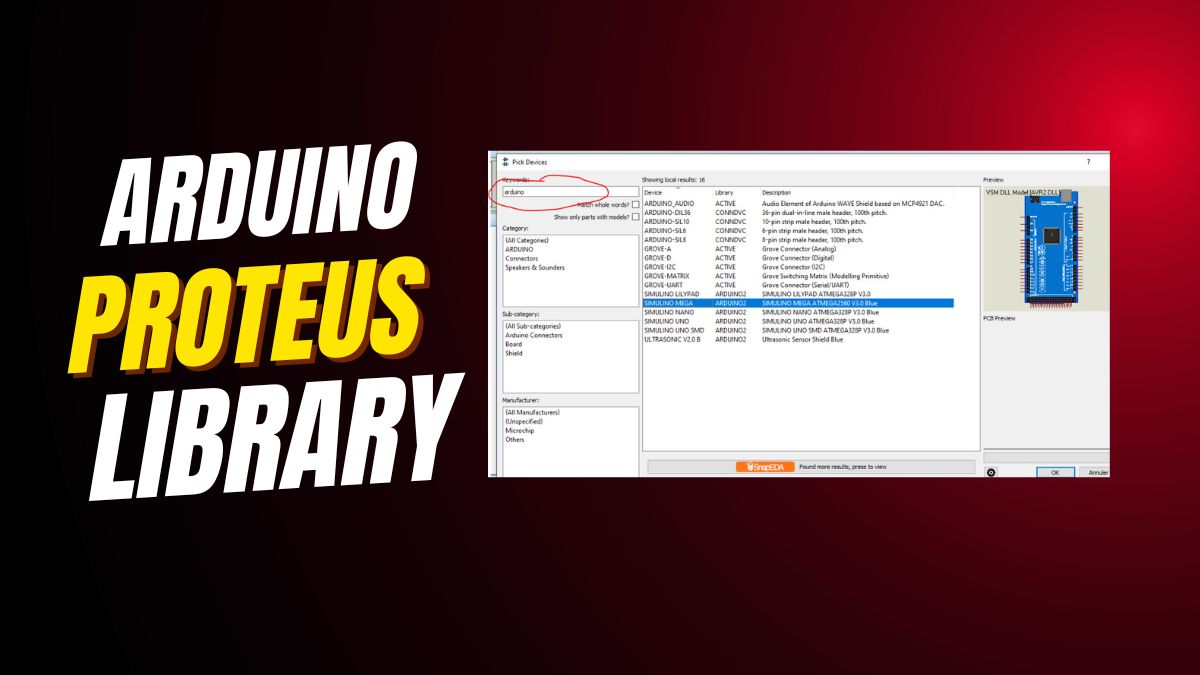

Arduino Library for Proteus: The Essential Guide
Adding the Arduino library for Proteus lets you simulate Arduino projects without any physical hardware. This step-by-step guide walks you through installing the Arduino library for Proteus correctly — from downloading to testing your first simulation. Whether you’re a student, hobbyist, or educator, mastering the Arduino library for Proteus saves time, reduces errors, and accelerates learning.
Why You Need the Arduino Library for Proteus
Proteus 8 doesn’t include Arduino boards by default. Without the Arduino library for Proteus, you can’t simulate Uno, Nano, Mega, or ESP32 circuits. Installing the Arduino library for Proteus unlocks full compatibility with Arduino sketches and peripherals like sensors, motors, and displays. It’s the fastest way to debug code before touching real hardware — making the Arduino library for Proteus indispensable for any serious Arduino learner.
Main Benefits of Using the Arduino Library for Proteus
- Test Arduino code without a physical board — thanks to the Arduino library for Proteus.
- Simulate sensors, LEDs, servos, and displays using the Arduino library for Proteus.
- Save time and avoid costly hardware mistakes with the Arduino library for Proteus.
- Learn Arduino programming safely — all powered by the Arduino library for Proteus.
- Build and test full prototypes faster using the Arduino library for Proteus.
Tools Required to Install the Arduino Library for Proteus
- Proteus 8 Professional installed on your PC.
- Arduino IDE for compiling and exporting your sketch (.hex file).
- The official Arduino library for Proteus ZIP file (download link below).
- Basic file explorer skills to manage folders and copy files.
- Optional: A backup of your existing Proteus library folder before adding the Arduino library for Proteus.
Step 1: Download the Arduino Library for Proteus
Download the latest Arduino library for Proteus from a trusted source. Use this secure Google Drive link to get the correct ZIP file. Make sure the download completes fully — a corrupted file will break the Arduino library for Proteus installation.
Step 2: Unzip the Arduino Library for Proteus File
After downloading, extract the ZIP file using Windows Explorer or WinRAR. Never rename any files inside the extracted folder — doing so can break the Arduino library for Proteus. Keep the original folder structure intact so Proteus can recognize the components correctly.
Step 3: Copy the Arduino Library for Proteus Files
Select only the essential files and folders from the unzipped Arduino library for Proteus package. Avoid copying extra or duplicate files. Right-click → Copy. These files will be pasted into Proteus’s library directory to complete the Arduino library for Proteus setup.
Step 4: Locate the Proteus Library Folder for Arduino Library for Proteus
The Arduino library for Proteus must be placed in one of two folders. If you’re unsure which, check both.
Case 1: Program Files Folder
Navigate to: C:\Program Files (x86)\Labcenter Electronics\Proteus 8 Professional\Library. If this folder exists, paste the Arduino library for Proteus files here. This is the default location for most installations.
Case 2: ProgramData Folder
If the above folder is missing, check: C:\ProgramData\Labcenter Electronics\Proteus 8 Professional\Library. This is often used in newer or updated versions of Proteus. Paste the Arduino library for Proteus files here. Ensure you run File Explorer as Administrator to write to this folder.
Step 5: Verify Your Arduino Library for Proteus Installation
Open Proteus 8 and click the “Components” button. Type “Arduino” in the search bar. If you see components like “Arduino Uno,” “Arduino Nano,” or “Arduino Mega,” then the Arduino library for Proteus has been installed successfully. If not, restart Proteus and double-check your folder path — the Arduino library for Proteus must be in the correct location to work.
How to Add an Arduino Board Using the Arduino Library for Proteus
Once the Arduino library for Proteus is active, click any Arduino board (e.g., Uno) and place it on your schematic. Connect LEDs, buzzers, sensors, or displays as needed. Then, compile your sketch in Arduino IDE and export the .hex file. Load it into the Arduino component in Proteus and run the simulation. The Arduino library for Proteus enables full real-time interaction — just like a real circuit.
Beginner Tips for Using the Arduino Library for Proteus
- Always backup your Proteus library folder before adding the Arduino library for Proteus.
- Use the latest version of Arduino IDE to ensure compatibility with the Arduino library for Proteus.
- Verify file paths carefully — even one wrong folder breaks the Arduino library for Proteus.
- Start with a simple LED blink project to test your Arduino library for Proteus setup.
- Organize your downloaded Arduino library for Proteus files in a dedicated folder for future projects.
Common Problems with the Arduino Library for Proteus (and How to Fix Them)
Problem: Arduino Boards Don’t Appear in Proteus
If your Arduino boards don’t show up after installing the Arduino library for Proteus, first restart Proteus. Then confirm the files are in the correct Library folder. Double-check that you copied the entire contents of the unzipped Arduino library for Proteus — not just one file.
Problem: Simulation Errors or Missing Components
These errors usually occur when the Arduino library for Proteus ZIP file is incomplete or corrupted. Re-download the file and re-extract it. Avoid spaces or special characters in the file path — stick to simple folder names like “Proteus_Libs” for reliability.
Problem: Permission Denied When Pasting Arduino Library for Proteus Files
If you can’t paste files into Program Files or ProgramData, you need Administrator rights. Right-click File Explorer → “Run as administrator,” then navigate to the Library folder and paste the Arduino library for Proteus files again.
Conclusion: Master the Arduino Library for Proteus Today
Installing the Arduino library for Proteus is simple: download, unzip, copy, paste, and test. Once done, you gain the power to simulate every Arduino project before building it — saving time, money, and frustration. Whether you’re debugging code, teaching electronics, or prototyping sensors, the Arduino library for Proteus is your most valuable virtual tool. Don’t skip this step — make the Arduino library for Proteus part of your standard workflow.
If you’re working on ESP32 simulations, you may find this ESP32 Proteus tutorial useful for setting up and testing your circuits virtually. Also, if you’ve ever struggled to locate the missing library folders in Proteus, this guide on how to find the Proteus library folder easily will save you time. For those comparing microcontroller boards, check out this detailed breakdown of the differences between Arduino and Elegoo: Which one to buy in 2025. And if you’re still deciding which model fits your project needs best, this comparison guide on the right Arduino-compatible board offers a simple explanation to help you choose confidently.
—




Leave a Reply